# Figma to Shopify with Foxify
The **Figma to Shopify with Foxify plugin** lets you **copy-paste your Figma designs directly into Foxify**, Shopify smart visual page builder.
This tool speeds up your workflow **5x faster**, **turning your Figma design into live pages in seconds** instead of hours.
You can **go from concept to conversion in 1 click, with 98% design fidelity**.
Convert a Static design
Convert a Newsletter section
Convert a Countdown timer section
Figma to Shopify is available in Foxify **Growth** and **Enterprise** plans. *Learn more:* [Pricing plans](https://docs.foxecom.com/foxify-app/getting-started/account-and-billing/pricing-plans)
## How it works
* **1-click copy-paste**: Just copy your Figma design and paste it into Shopify. No need to rebuild anything or write code.
* **Looks exactly like your design**. Your imported section will match your Figma file with up to 98% accuracy, so what you see is what you get.
* **At least 5x faster**. What used to take hours can now be done in minutes - sometimes even seconds.
* **Fully editable and customizable**. Your design isn’t just a static block. Once pasted, it becomes a clean, editable Shopify section you can tweak anytime using the Foxify Smart Page Builder.
## Best practices
### Copy Section by Section, not a Full Page
* For the best result, copy and paste one individual **section at a time,** rather than an entire page.
* Smaller sections load faster, perform better, and are less likely to run into formatting issues during import.
### Use Auto-Layout for your Figma design
* [Design with **Auto Layout**](https://help.figma.com/hc/en-us/articles/5731482952599-Add-auto-layout-to-a-design) to ensure your elements translate into responsive layouts in Foxify.
* Auto-Layout designs adapt better across desktop, tablet, and mobile screens.
### Test responsiveness
* Preview your design across different devices to ensure your page looks great everywhere.
* We constantly improve the [AI responsive](https://docs.foxecom.com/foxify-app/foxstudio/editor-tools/ai-responsive)feature to optimize the responsiveness of your design.
### Use static elements only
* Dynamic Shopify elements like product collections, carousels, and sliders aren’t fully supported with the plugin yet.
* Interactivity (carousels, button links) must be added manually after conversion.
### Upload your own Custom Fonts
* Figma doesn't allow plugin access to export fonts, so you’ll need to upload any custom fonts into Foxify yourself.
* If your design uses fonts that aren't available, Foxify will flag them.
* 👉 Learn more about uploading fonts in Foxify: [Add custom font](https://docs.foxecom.com/foxify-app/faqs-and-troubleshooting/faqs/how-to-add-custom-font)
## How to convert Figma design to Shopify with Foxify plugin
### Step 1: Get the plugin
Steps:
1. Go to [Figma to Shopify with Foxify plugin](https://www.figma.com/community/plugin/1415136291103675876/figma-to-shopify-with-foxify-shopify-smart-visual-page-builder?utm_source=foxecom\&utm_medium=help_center_foxify_figma_to_shopify\&utm_campaign=anchor_text\&utm_term=figma_to_shopify_with_foxify_plugin) on the Figma Community.
2. Click **Open in Figma** to add the plugin to your Figma account. The plugin is completely free to use.
### Step 2: Copy a Figma design
_5vS7AU3j.gif)
Steps:
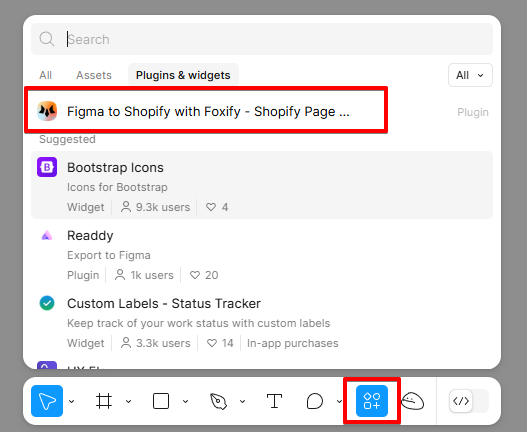
1. Open your Figma file and click /**Actions** in the toolbar.
2. From the **Plugins & widgets** tab, select **Figma to Shopify with Foxify** plugin to run it.
3. From the plugin interface, you can control:
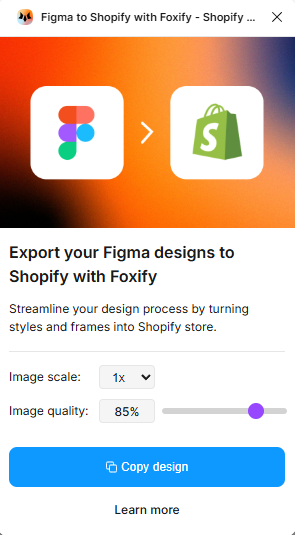
* **Image scale**: the resolution size of your exported images.
* Use **1x** for standard resolution (best for most users).
* Use **2x or 3x** for high-resolution displays (e.g., Retina screens or detailed graphics).
* **Image quality**: the compression level of exported images.
* 📌 **Tip:** Use **85%** for a balance between quality and load speed. Lower the value if you're optimizing for performance.
4\. Select a Figma frame or group layer that you would like to copy into Foxify.
```
:pushpin: **Tip**: To speed up the process, copy 1 section at a time - instead of the whole page
```
5\. Click **Copy design** button in the plugin interface.
Your selected design is now stored in your clipboard, ready to paste into Foxify.
### Step 3: Paste it into Foxify editor
_kPjmU9S1.gif)
Steps:
1. Open the page editor where you want to paste the copied Figma design.
2. Select **Paste from Figma** or use the shortcut **Cmd+V (Mac) / Ctrl+V (Windows)**.
The design will automatically appear, with layers preserved and static elements ready to customize.
The position of the pasted element will depend on the cursor's current location.
Image uploads may take a few seconds.
For best performance, optimize your images in Figma before copying.
## FAQs
### Is the Figma to Shopify plugin free?
Yes! The plugin is completely free to use on Figma Community.
However, to *paste designs into Foxify*, you’ll need an active Foxify plan (Growth or Enterprise). See [Pricing plans](https://docs.foxecom.com/foxify-app/getting-started/account-and-billing/pricing-plans)
### Can I import full Shopify product sections?
Currently, the plugin only supports **static design elements**. Dynamic Shopify features (like product collections or live product data) need to be added manually after the paste.
### Does the plugin support interactivity like hover states or animations?
Animations can be added inside Foxify after the design has been imported.
👉 Learn how: [Animations](https://docs.foxecom.com/foxify-app/foxstudio/layout-and-styling/animations)
***
%20\(1\)_kcilvHtH.png)